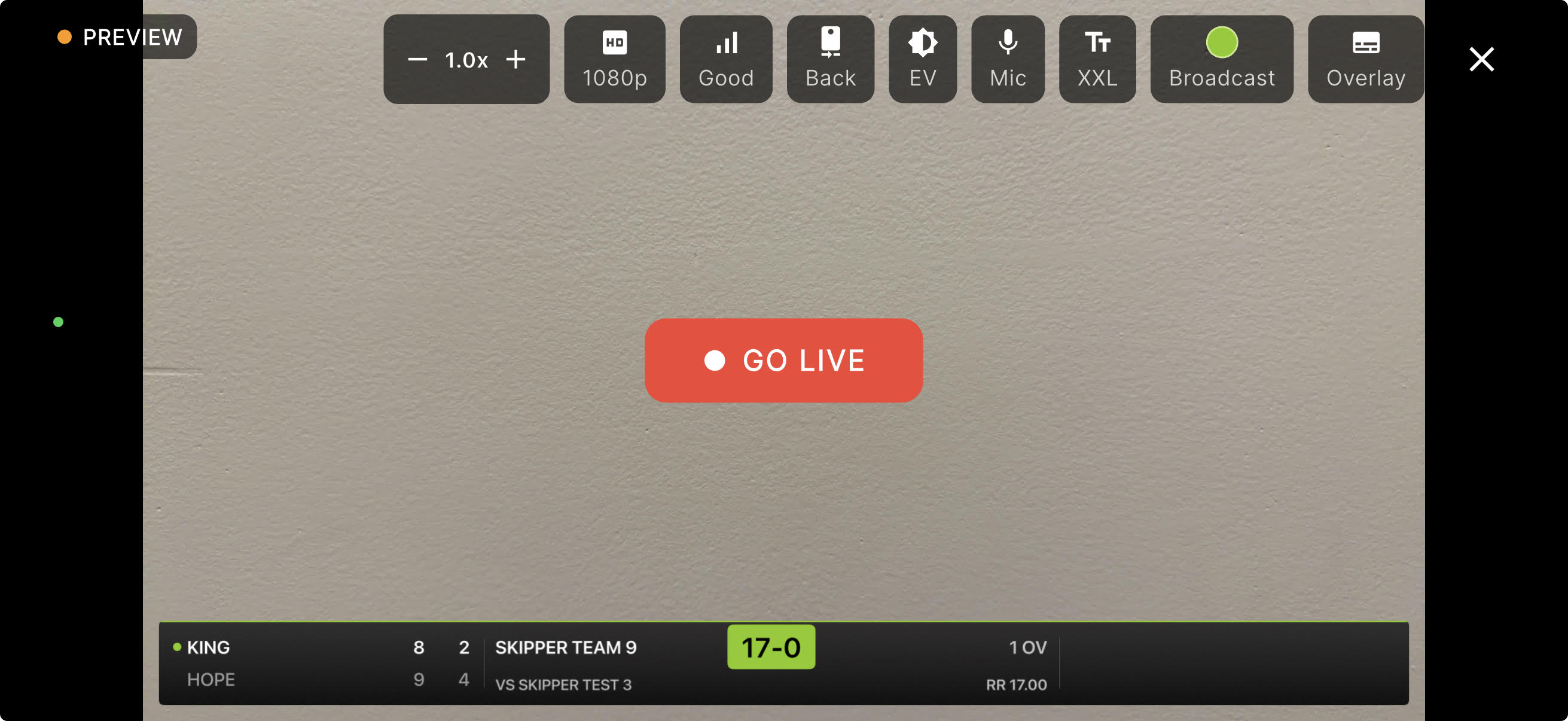
Stream Health and Remote Camera Controls
The phone streaming your match is the phone nobody is holding. It is strapped to a tripod at the sightscreen end, and you are at the other end of the ground with the scorebook. When the sun moves and the batsman drifts out of frame, or the crowd behind the camera gets loud, or the uplink quietly dies at the drinks break, the old answer was to walk there and hope you noticed in time.
Skipper now tells you what is actually happening to your broadcast, and lets you fix most of it without getting up.
Live Is Not the Same as Reaching People
A stream can say "live" and still be delivering almost nothing. The phone is encoding happily, the app looks fine, and the uplink at the ground is dropping most of what it sends. Nobody watching sees a smooth game, and the person running it has no idea.
So Skipper reports the number that matters: how much of your broadcast actually reached YouTube. Not a green dot, a percentage.
Crucially, it separates a bad network from a deliberate pause. If you paused for the innings break, that time is counted as paused, in blue, and never held against you. A tea interval is not a failure, and your stream should not be marked down for one.
Where to Find It
Open the live scorecard for your match. If you own a stream on it, you get an extra strip reading "Stream health · N% reaching". Tap it. You can also reach the same place from Stream health in the scorecard's overflow menu, and a health notification will deep-link you straight in.
The monitor has three tabs.
Health
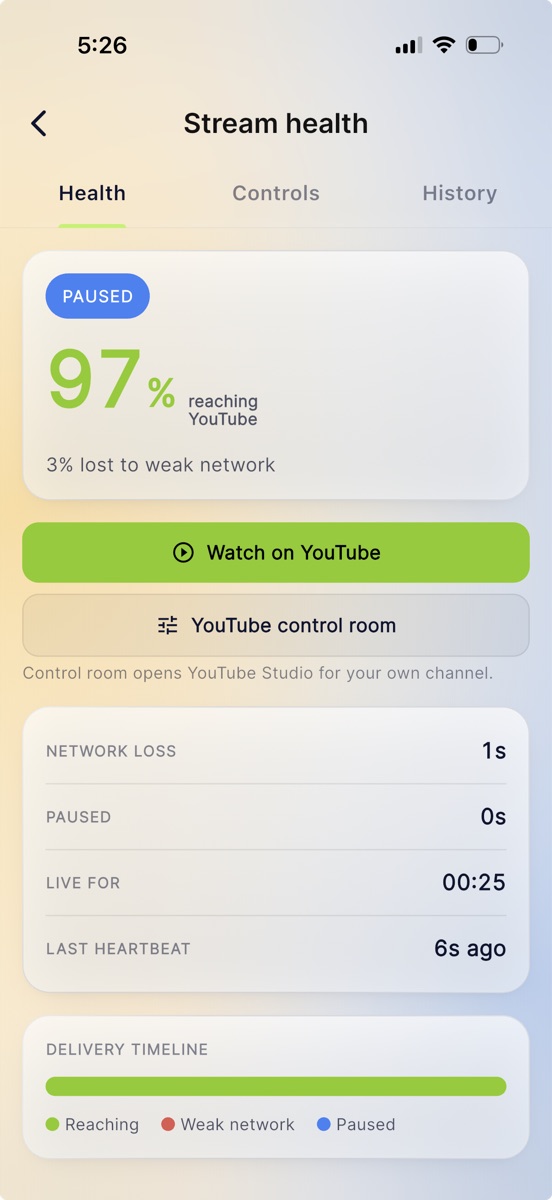
The condition, in one word at the top: Live, Weak while it checks the connection, Stalled, Paused, or Offline. Below that, the delivered percentage and a timeline coloured green where the stream was getting out, red where the network was struggling, and blue where you had paused.
You also get how long you have been live, how much time was lost to the network, when the last heartbeat arrived from the device, and links to Watch on YouTube and, for your own channel, the YouTube control room.
Controls
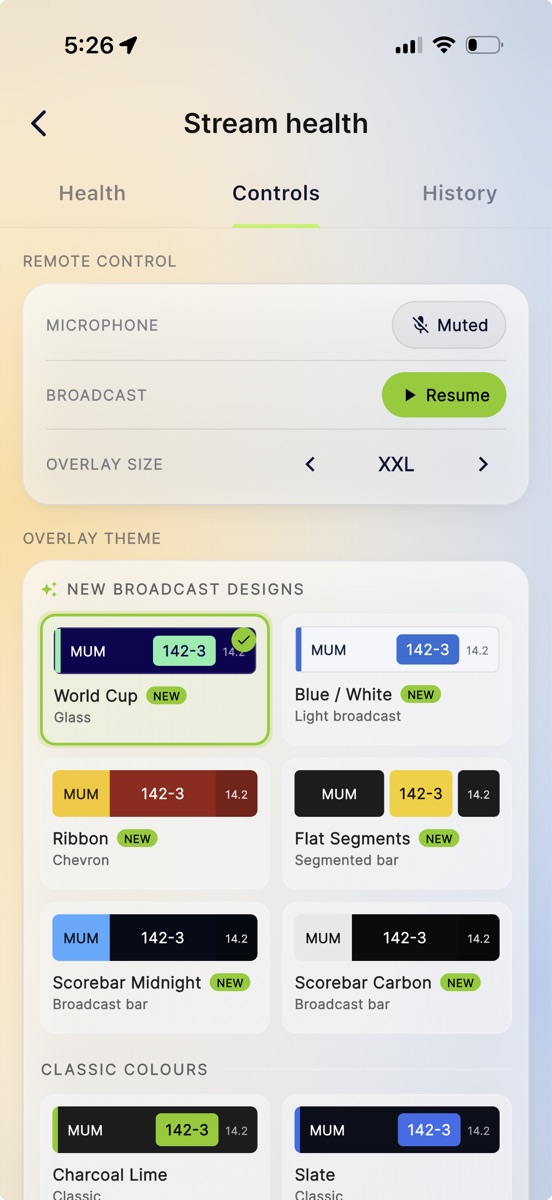
This is the tab that saves the walk. Everything here drives the phone on the tripod from wherever you are sitting.
The ones you will use most:
- Mute and unmute the microphone. For the family behind the camera during a tight chase.
- Pause and resume the broadcast. For the innings break, without ending anything.
- Overlay theme and size. The same theme gallery the scorer sees, so you can change the scoreboard look mid-match if a sponsor wants a different one.
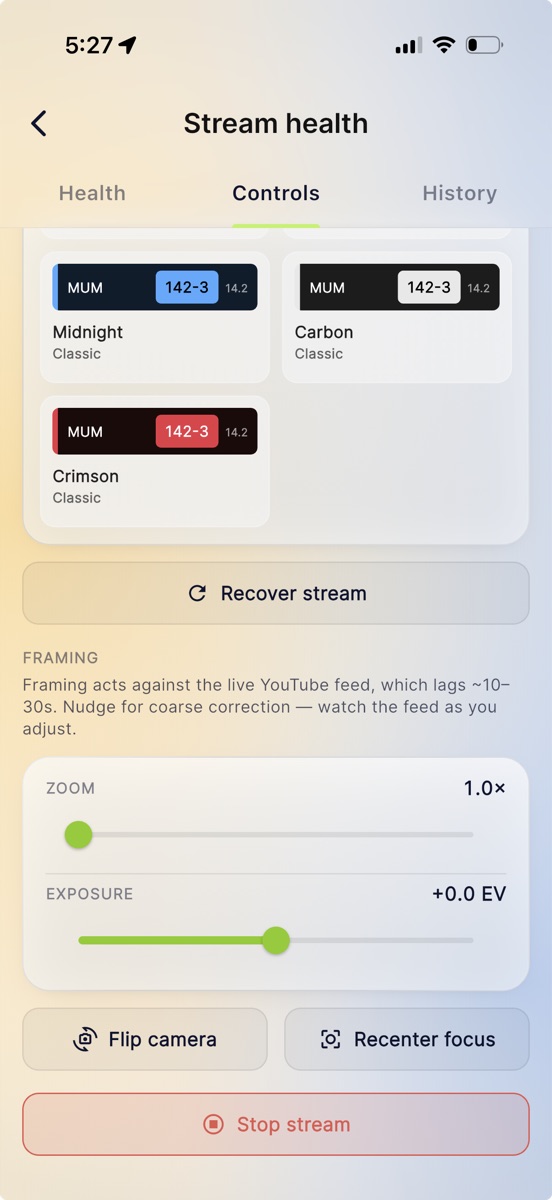
- Recover stream. A full restart of the pipeline when something has gone properly wrong.
And a Framing group:
- Zoom and Recenter focus, for when the action has drifted or the camera has hunted onto the wrong thing.
- Exposure, for the hour when the sun drops behind the pavilion and everything turns into a silhouette.
- Flip camera, for a presentation or a piece to camera at the end.
One thing to understand before you use framing, because it will otherwise have you chasing your own tail. You are watching the live YouTube feed, and that runs roughly ten to thirty seconds behind what the camera is actually doing. So a zoom you make now shows up on your screen half a minute later. Nudge it, wait, look again, nudge again. Treat framing as coarse correction rather than something to fine-tune shot by shot, and it works well.
The controls show the device's real state, not what you last asked for. If the phone does not acknowledge a change, the control reverts and tells you. If the device is unreachable altogether, the controls grey out with a note explaining why, and Stop stream stays available throughout, because ending a broadcast is the one thing you must always be able to do.
What you cannot do remotely is anything to do with the cricket. Scoring, innings, and sync are not remote-controllable, by design.
History
Every past streaming session on the match, each with its delivered percentage and its timeline bar. Useful the morning after, when someone asks why the second innings looked rough and you would like an honest answer rather than a guess.
Alerts
You do not have to sit watching the monitor. Skipper checks every live stream once a minute and pushes you when the situation changes: it stalled, it went offline, it recovered.
The alerts are built to be worth trusting, which mostly means not crying wolf:
- A stream gets about a minute and a half of grace after going live, so the normal warm-up never fires an alert.
- A dip has to persist across two checks before you are told, so a single bad moment stays quiet.
- A healthy stream is silent, and so is a clean stop. You are only pushed when something changes.
- A paused stream is a paused stream. Lunch never sends you "your stream stopped".
- Stalled and offline will reach you through quiet hours, because that is the whole point.
If you would rather not have them, there is a Stream alerts toggle in Notification Settings.
Who Can See and Do What
Health and history are open to the owner of any stream on the match, to Skipper admins, and to the match officials, meaning the umpires, commentators, and referee. Officials get a review-only card with no controls at all, and never the YouTube control room link.
Controls and Stop belong to the stream's owner and to Skipper admins. Nobody else can touch your camera.
If a Stream Will Not Go Live at All
Separate from monitoring, but worth knowing: if the connection at the ground is too weak to establish the broadcast, Skipper now tells you so within a few minutes, in those words, instead of spinning for twenty and then failing silently. Spectators no longer see a stream listed as live when nothing is coming out of it. If you get that message, the usual fixes are a stronger network, a lower quality setting, or recording on the device and uploading afterwards.
See How to Stream a Match Live for the full setup, including the professional OBS path.