How to Stream a Match Live
A live stream turns a Sunday club game into something the players' families can watch from another city, with a real scoreboard sitting in the corner of the screen. Skipper does the broadcast part for you. The score, the wickets, the over summaries, all of it appears on the video automatically, pulled straight from the match you are scoring.
Here is how to go live, who is allowed to, and what to do if the stream button is not yet yours to press.
Where the Stream Button Lives
Open the live match screen and look for the banner: "Roll camera. Stream this match live on YouTube." You can go live across the whole arc of a game now. From before the first ball, with the match still at the toss, through the innings, and for a short window after the result so you can carry the presentation and the trophy lift. A match that is about to start and one that wrapped up in the last few hours can both be put on air.
The banner steps aside once the first over is done, to leave room for the scorecard. You can still go live after that. Tap the ⋮ menu on the scorecard and choose Go Live on YouTube.
Who Can Stream
Streaming is open to the people running the match, not to anyone who happens to be watching. You can stream if you are:
- the person who created the match,
- the active scorer, or anyone on the scorer list,
- a player in either team, or
- a tournament Owner, Admin, or Scorer (for tournament matches).
If you are a player in the match, you are covered. If you are only watching, ask one of the people above to add you.
If You Don't Have Access Yet
Tap the banner without access and Skipper shows you a screen called You can't stream yet. It lists Who can stream, then How to get access, with a shortcut where one exists:
- Ask the scorer to add you. The View scorer list button opens the scorer list so you can ask whoever is scoring to add you in seconds.
- Join one of the teams. Ask a team admin to put you in the playing XI.
- Contact a tournament official. This one shows up on tournament matches.
Once someone has sorted you out, tap the button at the bottom that reads I've been added, check again and the screen refreshes. No need to restart anything.
Ways to Stream
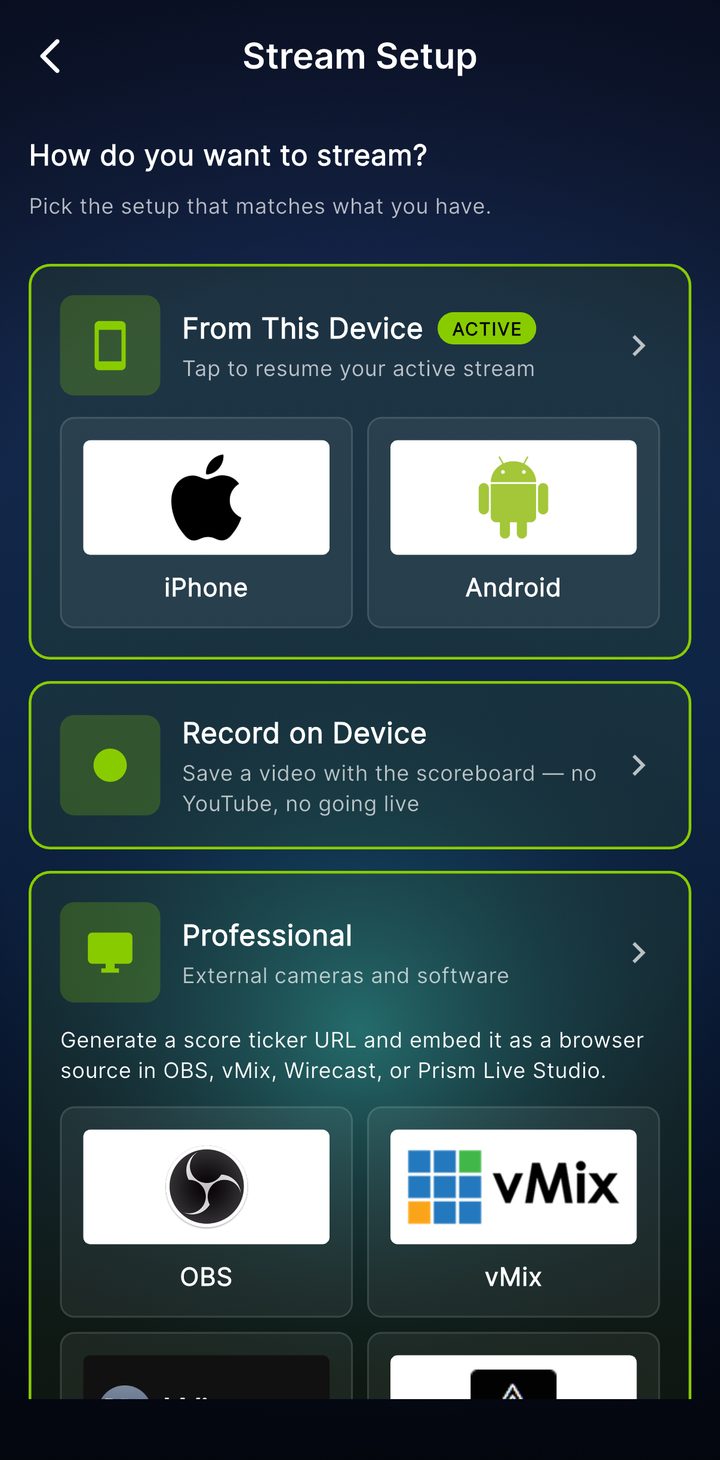
When you do have access, Skipper opens Stream Setup and asks how you want to stream. There are three answers.
From this device. Your phone is the camera. It films, adds the overlay, and sends the broadcast to YouTube, all from the device in your hand. This is what most people use.
Record on device. The same camera and scoreboard, saved as a video on your phone instead of going out live. Handy when the signal at the ground will not hold a stream, or when you just want the recording to share afterwards.
Professional. For setups with a real camera and software like OBS, vMix, Wirecast, or Prism Live Studio. Skipper gives you a browser-source overlay URL to drop into that software, so the scoreboard rides on top of your own production. The overlay is always available, even if you never stream from the phone.
For a tournament, the same screen has a Stream history link that shows which matches went out and when.
The rest of this guide follows the phone path, since that is the one most clubs reach for.
Setting Up a Phone Stream
The config screen asks for a few things:
- Stream Channel, the one real decision here, covered next.
- Stream Title, which defaults to something sensible and is yours to change.
- Camera Position, a short label like "Bowler's End" or "Square Leg" so viewers know the angle.
- Privacy: Unlisted, Public or Private.
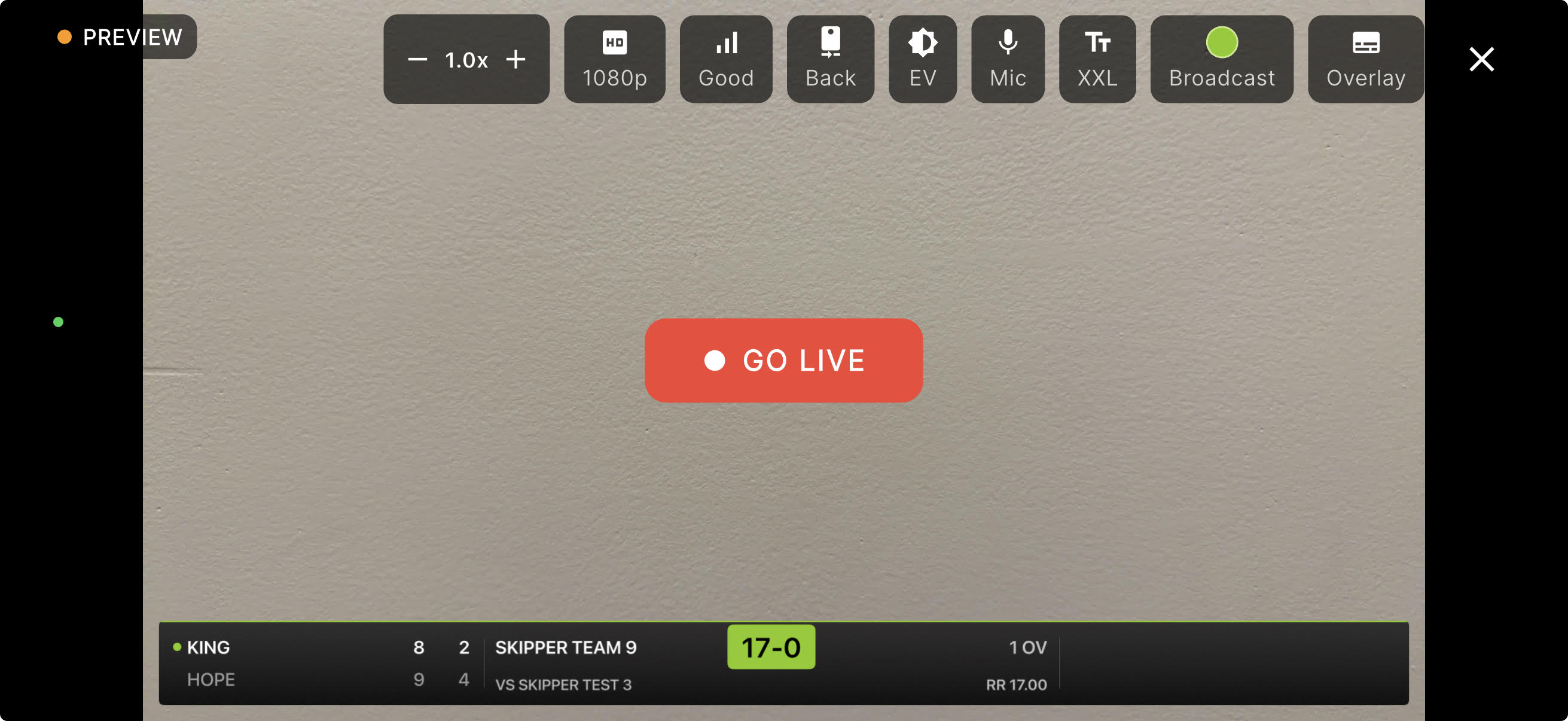
Tap Start Preview and the camera opens in landscape. Nothing is live yet. The network quality setting sits on this preview screen. Set it to match your connection, because better connections get lower latency. It is locked once you are live. The big red GO LIVE button is what actually starts the broadcast.
Skipper also checks that your phone can reach it before you go live. You may see Checking your connection… for a moment. With no internet you will see Going live needs internet, so move to mobile data or Wi-Fi and try again. On some Android phones you will also get a Before you go live hint about a battery-saving data setting that slows uploads. Tap Open SIM settings to switch it off.
Choosing a Channel: Skipper's or Your Own
This is the part the question "request access or custom account" is really about. You can stream to two different places.
Your own YouTube channel
This is the custom-account route, and it is open to everyone. The first time, Skipper sends you to a quick connect step that signs you into YouTube and links your account. After that you control the lot, the title and whether the video is unlisted, public, or private.
One YouTube requirement to know about: live streaming has to be switched on for your channel, which YouTube does after you verify your phone number, and it can take up to 24 hours the first time. Do this a day ahead if you can. If it is not ready, Skipper shows you the steps.
The Skipper Cricket channel
You can also stream onto Skipper's own YouTube channel, which puts your match alongside others under one banner. Because it is a shared, branded channel, it needs approval. Tap Request, tell us briefly what you are streaming, and the request goes to our team for review. Your status moves from requested to approved (or, occasionally, declined with a reason). Once you are approved, the Skipper Cricket option becomes selectable. Streams there always go out unlisted, and the title is branded automatically.
While You're Live
Once you tap GO LIVE, a small set of controls sits along the edge of the screen:
- Mute or Unmute the microphone.
- Flip between the front and back camera.
- Matches, on a tournament stream, to switch which match the overlay shows.
- The text size button, so the scoreboard suits your screen.
- Share, which hands you the YouTube watch link to send to the group.
- End to finish.
You can still pinch the preview to zoom. The theme button, which shows the name of the look you are on, opens the look picker covered below.
You can pick between 720p and 1080p. If your connection is shaky, 720p holds up better. A stable Wi-Fi connection is the difference between a smooth broadcast and a frozen one, especially at 1080p.
What the Overlay Shows
The scoreboard is not a static graphic, and it now carries the whole broadcast, from the build-up to the celebrations.
Before the first ball. The overlay opens with a proper pre-match show. A squad card runs through each side's eleven with the players' photos, the captain and the wicket-keeper marked, and a toss card flips the coin and tells viewers who chose to do what. Your team badges sit in the corners, and in a tournament the competition's logo rides alongside them, so the broadcast looks like it belongs to the event.
During play. Wickets, fours, and sixes pop up as cards, and the current batters and bowler keep their figures on screen. Between overs a fully redesigned end-of-over card drops in with the runs and wickets from the over across the top, then the whole picture underneath: the full batting card with the two not-out batters picked out, the extras and the fall of wickets, and every bowler's figures and economy. It is a proper scorecard on the broadcast, not just a line of numbers. You can also tap to bring up extras on demand, a scorecard snapshot, the partnership, the run rate, or the match info.
After the result. The broadcast no longer cuts out the moment the match ends. A result band holds the score and the winner on screen while you keep filming the presentation, the handshakes, and the trophy. You end it when you are ready, not the instant the last wicket falls. And if the overlay ever freezes mid-broadcast, it now rights itself instead of dropping the stream.
None of it needs a second operator. It all runs off the same scoring you are already doing.
Dressing It Up: Themes and Text Size
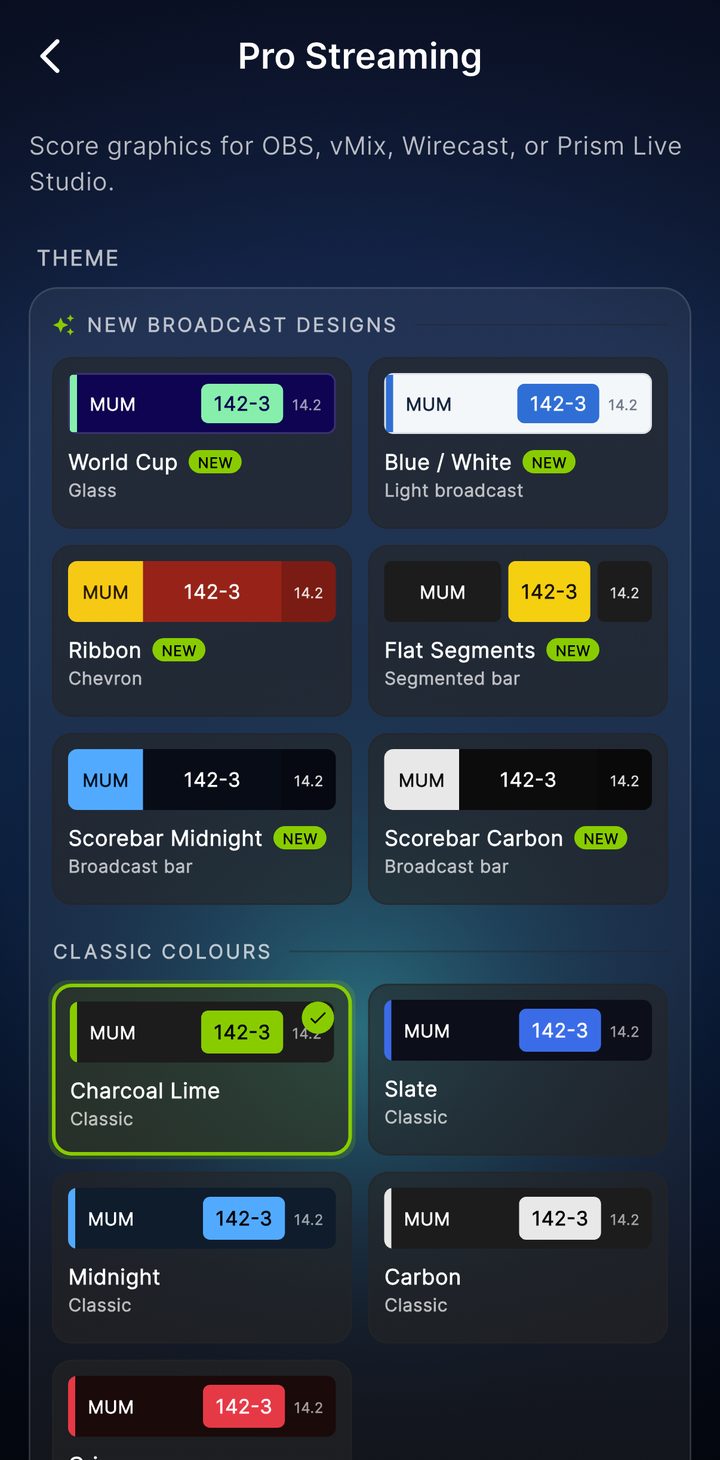
The theme button on the stream screen is where you decide how the scoreboard looks. It opens the Overlay look gallery. Tap a look to preview it with a sample match, then tap Use this look to put it on air. The looks are grouped into families:
- Showcase fills the screen with the cards, the squad sheet, the wicket, the end-of-over scorecard, given room to breathe. It is the default, and it suits a stream people are sitting down to watch.
- Broadcast tucks a compact block into the bottom corner and leaves the middle of the picture clear, closer to a television score bar. Handy when the cricket should stay front and centre.
- Broadcast Pro has full-width, TV-style scorebars for the OBS or vMix route.
- Studio is the newest family, with 14 looks that each bring their own animations for fours, sixes and wickets, plus a card for every new batter and bowler. They are Heist, Bauhaus, Riso, Blueprint, Abyss, Bento, Franchise, Truck Art, Comic, Heroes, Toon, Arcade, Blockbuster and Gully.
Showcase and Broadcast also come in colour schemes, from the Skipper charcoal and lime through to slate, midnight, carbon, and crimson, so the scoreboard can carry your club's colours or just suit the light you are filming in. Text size has three steps, L, XL and XXL, with XXL as the default, so the numbers stay readable on a phone or on a television.
On the Professional path you can switch look while you are on air without restarting the stream. The overlay updates itself live.
Streaming from a Second Phone
If you are scoring, it is usually best not to stream from the same phone. Scoring and filming both want your full attention. Open the scoring menu and tap Stream this match. A sheet walks you through it:
- Install Skipper on a second phone and sign in.
- Tap Add to scorer list to give that phone's owner access. You can pick them from either team or search by phone number.
- Tap Send match link so they can open the match on their phone.
- On that phone, open the ⋮ menu and choose Go Live on YouTube.
You keep scoring on your phone while the second one films.
Before the Toss: A Quick Checklist
- Give Skipper camera and microphone permission.
- If you are using your own channel, confirm live streaming is enabled the day before.
- If you want the Skipper channel, send the access request early so approval has time to land.
- Find stable Wi-Fi or a strong signal, and prop the phone where it will not get bumped.
Get those sorted and going live is two taps: Start Preview, then GO LIVE. The first stream feels like a big deal. By the third, you will be setting it up during the warm-up without thinking about it.