Your Academy's Public Page
Running your academy on Skipper is the inside job: batches, attendance, fees, notices. This is the outside one. Your public page is what a parent sees when they find you in the directory, or when someone forwards them your link, and it is the difference between an enquiry and a scroll past.
Open it from the More tab, under Public page.
Nothing on It Is Counted
Start with what the page will not do, because it is unusual and it matters.
Skipper publishes nothing about your academy that you did not write. No student count. No rating out of five. No years-running badge. No win-loss record from your teams. There is no algorithm quietly deciding that a fifteen-student academy is worth less than a hundred-student one.
The reason is simple. A good academy that opened in March would lose every one of those comparisons to a mediocre one that opened in 2009, and the parent reading the page would be none the wiser. So the page carries your words and your photographs, and the judgement stays with the person reading it.
The same thinking runs through the directory. It sorts by distance when someone has shared their location and by newest first when they have not. Roster size is not a ranking signal anywhere.
The Cover Image, and the Trap
Your academy has two kinds of image and they are easy to confuse.
The cover is the public one. It is the hero at the top of your public page and the image on your card in the directory. You set it in Academy details, and Skipper crops it to a locked 16:9 so it sits properly on every screen. It wants a wide shot: your nets, your ground, a session in progress.
The banners are the private ones. They are the carousel your own students and staff see on the academy home screen, managed from the Manage banner sheet, and they never appear on the public page. This is deliberate. "Fees due on the 5th" is exactly the sort of thing that belongs in front of your students and nowhere near a stranger deciding whether to visit.
Worth checking today: when covers were introduced, existing academies had one filled in automatically from an old banner image. If you have been running an academy on Skipper for a while, open Academy details and look at your cover. There is a fair chance it is an internal notice you never intended the world to see.
The Six Sections
The editor lists six. Fill in the ones that apply and leave the rest alone: a section you have not written simply does not appear, no empty heading, no hollow tab. If you fill in only one, the page renders it without a tab strip at all.
About. A description of what you do, and the year you started, which the page renders as "Since 2015". Two fields, and the ones a parent reads first.
Facilities. Nets, turf wicket, bowling machine, floodlights, whatever you have. Each gets a label, a note, and a photograph. This is the section that answers "is it worth the drive".
Programs. What you actually run: the summer camp, the U-14 batch, the weekend group. Each carries ages, level, price, and weekly slots. Two things to know. The price here is marketing copy, so it never invoices anyone, and you can add a note like "+18% GST" beside it. And a program with an end date disappears from the public page when that date passes, in your academy's own timezone, so a summer camp lives through its final day and then stops advertising itself. It stays on your list, marked as ended, ready to be edited and run again next year.
Achievements. Free text. Trophies, a student who made the district side, a season nobody expected.
Gallery. Up to twelve photographs, shown in the order you arrange them. Lead with the ones that make the place look like somewhere you would send a child.
Coaches. The section with a rule of its own, below.
Coaches Decide for Themselves
You cannot put a coach on your public page. You can only ask.
From Public page → Coaches, propose a member: write the public title you would use for them, a short bio, and how long they have played and coached. Then tap Ask them. Each coach shows a status, so you always know where things stand: Not asked, Asked, On the page, Needs a title, or Opted out.
Two things follow from this that are worth understanding rather than discovering.
A coach who has said yes still will not publish without a public title. Their internal role is not a marketing title, and Skipper will not quietly print "HEAD_COACH" on a page a parent is reading. If you see Needs a title, that is what it wants.
And a decline sticks. If a coach says no, that is the end of it. You cannot ask again, and the answer survives even if they leave the academy and rejoin later. Only they can change it. This is the right way round: their face and their history are theirs, not the academy's to publish.
The years played and years coached are claims typed by a person, not numbers Skipper works out from match history. Write them honestly.
If You Are a Coach
Every staff member gets My public profile on the More tab, whatever their role. It is where you say yes or no for yourself.
You will find your details there as the academy proposed them, yours to correct, with two plain buttons: Put me on the page, and Take me off the public page. You do not need anyone's permission to use either, and you do not need to ask the owner to take you down.
Enquiries Come Back to Requests
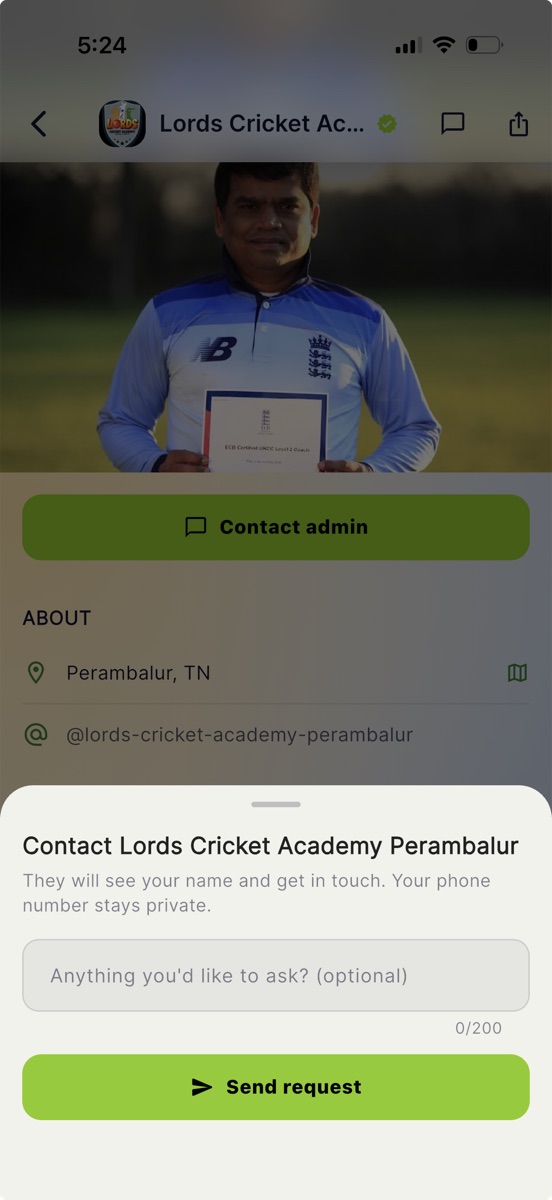
A visitor who is not a member of your academy sees one action: Contact admin. They can add a line about what they are after, and send it.
Those land in Requests on your More tab, with a badge showing how many are new. It is visible to owners and admins.
Open a request and you see who asked and what they said. Opening it marks it seen. From there you can Start chat, which opens a conversation with them and sends a first message straight away, so they get a notification rather than sitting in silence wondering whether anyone read it. Once a chat exists the button becomes Open chat. You can also Archive a request and move it back to the inbox later.
If a colleague has already started a chat on a request, the sheet tells you, so two people from the same academy do not both reply to the same parent.
What the visitor can and cannot see is worth knowing. They see the academy. They do not see which person you are or any owner's personal details. You see their name, so you know who you are talking to, but not their phone number. Everything happens through Skipper's chat until someone chooses to share more.
Sending People to It
Use the share action in your academy's app bar. It shares a link that works for anyone, whether or not they have Skipper installed, which is what you want in a WhatsApp status, on a poster, or in a reply to someone asking for a recommendation in a local group.
The order to do this in, if you are starting from nothing: set the cover, write About and one or two Programs, add three or four Gallery photographs, then ask your coaches. Twenty minutes gets you a page worth sharing, and you can add Facilities and Achievements the next time you have a quiet evening.