
Organize Your Teams the Right Way
Most cricket apps treat a team as something you assemble fresh before every match. Skipper does the opposite. You build your side once, and it stays yours, the same squad, the same colours, the same short name on the scoreboard, ready to drop into the next game without retyping a single name.
Do it properly the first time and you will never set up that team again. Here is how.
Creating a Team
Tap Create Team and you get a two-step setup.
Step one: name and home
- Team Name, the full name, like "Vadamugam Vellode Strikers."
- Short Name, the two-to-five-letter tag that shows on the scoreboard, like "VVS." Skipper guesses it from the full name, and you can change it.
- Home Ground or City, picked from a list. This helps with discovery later.
- Access code protection, a switch that is on by default. Left on, other people need a code to use your team in their matches. Turned off, anyone can. Leave it on unless you have a reason not to.
Step two: the look
Add a team logo (it falls back to your short name if you skip it) and choose a team kit, the colour palette that follows your team onto scorecards and stream overlays. A live preview shows you the card as everyone else will see it. Tap Create Team and you are done.
Adding Players
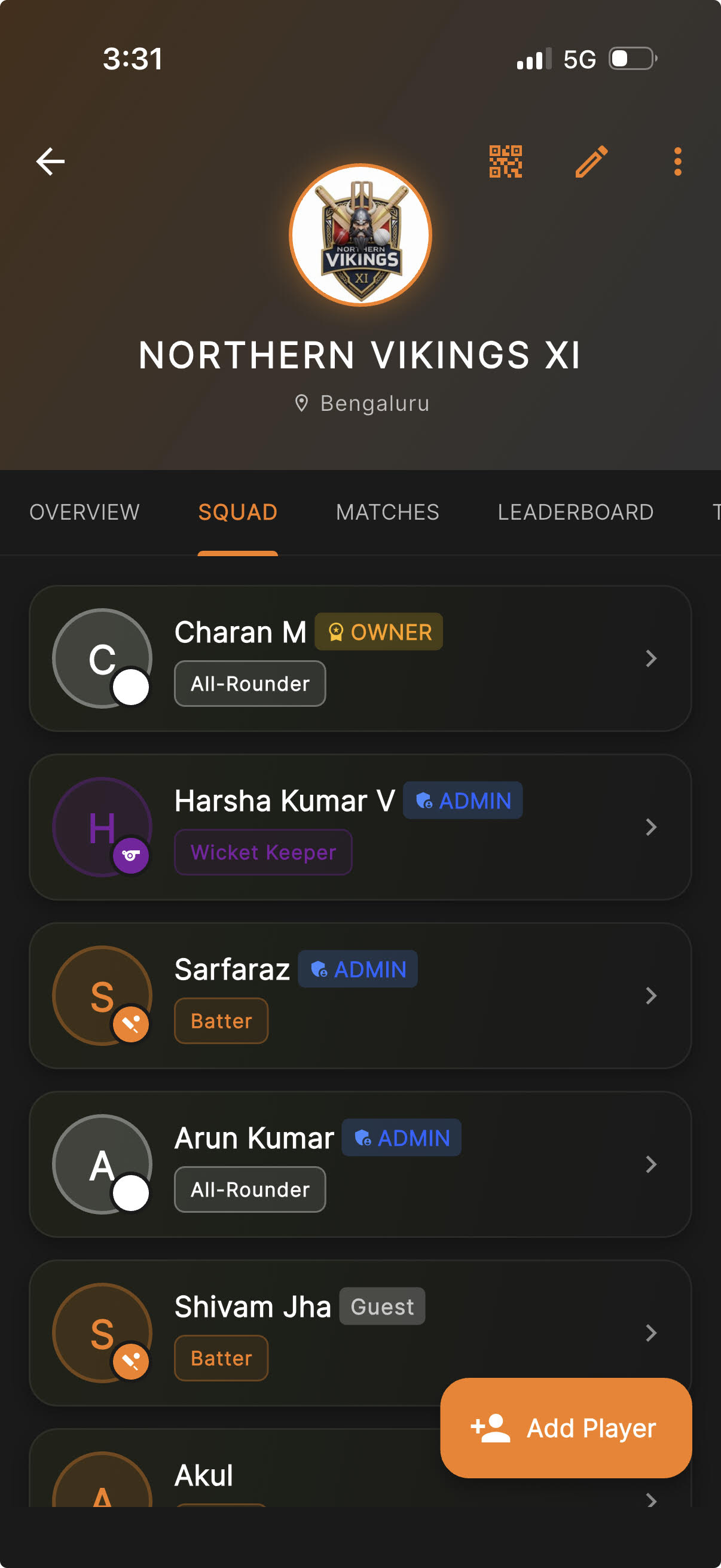
Open your team, go to the Squad tab, and tap Add Player. Skipper gives you four ways to do it, because no two clubs keep their player list the same way:
| Method | Best for |
|---|---|
| Search User | Players who already have a Skipper account. Their profile and stats come with them. |
| Contacts | Pulling names straight from your phone's contacts. |
| QR Code | Scanning a player's code in person. The quickest way to add someone standing next to you. |
| Bulk Add | Dropping in a whole list at once, one name, phone number or email per line. Phones and emails are matched to Skipper players. For anyone who is not on Skipper, tap their row to give them a name and add them as a guest. |
Registered players vs guests
A registered player has a Skipper account, so their batting and bowling carry into their own profile and they show up in search. A guest is just a name you have added locally, perfect for a fill-in or someone who has not joined yet. Guests still get scored and counted. They simply do not have an account behind them, and you can always link them later.
A note on privacy
Some players keep their profile protected, which means you cannot add them by search alone. Skipper will tell you, and the fix is to have them scan your team's QR code or accept an invite. It is their choice to keep things private, and this respects it.
Roles and Jersey Numbers
After a player is in the squad, you can give them a role, Captain, Vice-Captain, or leave them as a regular Member, and an optional jersey number. None of this is required to score a match, but it makes the squad read like a real team sheet.
Reusing Your Team
This is the payoff. Your teams live under My Teams, and when you set up a new match, your saved sides are right there in the team picker. Pick your team, pick the opponent, and the squads are already loaded. For a tournament, captains can register their saved team in one tap, squad and all.
What the Team Page Tells You
Open a team and you get more than a roster. The tabs cover:
- Overview, the team card, home city, and a quick summary.
- Squad, the players, with their roles and matches played.
- Stats, the aggregate picture, wins, losses, run rate, and where the side is strong.
- Matches, every game the team has played, with results.
- Tournaments, the events the team has been part of.
- Honours, the trophy cabinet.
From the team page you can also share a QR code or invite link, edit the team if you own or admin it, and manage the squad.
Let Fans Follow Your Team
Anyone can follow your team from its page. They tap Follow, and from then on your matches show up for them on Home, with a notification when a match starts and again when the result is in. The team page shows how many people follow you. Our follow a team guide has the details, and it is worth sharing with parents and supporters.
The Habit Worth Forming
Set your regular side up once, with the right short name, the right colours, and everyone's role filled in. From then on, every match and every tournament starts with your team already on the sheet. The five minutes you spend now is five minutes you save before every game for the rest of the season.