How to Make a Highlights Video
When you stream a match from Skipper, the wickets, fours and sixes are clipped on their own while you score. Simply pick the ones you want, and Skipper makes one video you can share as a link with your team and fans.
Who Can Make One
A highlights video can be made by the match's scorer, whoever created the match, or a tournament organiser. The match has to be finished before you can make one.
Step 1: Stream from Skipper
Open the match, tap the three-dot menu, and tap Go Live on YouTube. There is nothing to switch on. Every wicket, four and six is saved as a clip from your scoring while you stream.
Step 2: See Your Clips
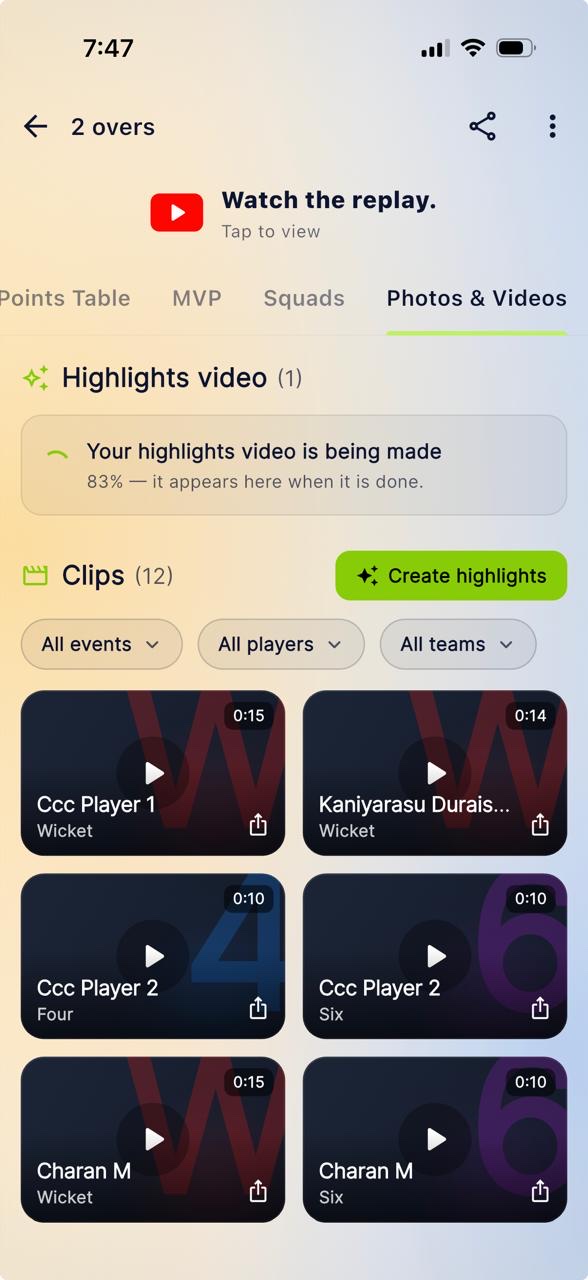
Open the match and go to the Photos & Videos tab. You will see a section called Clips with a count of all saved moments. Each clip shows the player and what happened on that ball. Tap one to watch it. Clips say Uploading… until they are saved, then Shared.
Step 3: Pick and Create
Tap Create highlights. To narrow it down first, use the filters All events, All players and All teams (for one player's best day, say). The screen tells you what you have picked, like All 7 clips, about 2 minutes. If clips are still uploading it says so; you can Keep waiting or Create without them. Tap Create highlights. It takes a few minutes and you can leave the screen.
Step 4: Watch and Share
It appears at the top of Photos & Videos under Highlights video, with an opening card showing both teams, the tournament and sponsors, and the player if all the clips are theirs. Tap Share to send a link.
Good to Know
- You can make one video at a time per match.
- You can make up to 2 videos an hour and 5 a day across your matches.
- Each video can hold up to 10 minutes and 24 clips.