Made a Mistake While Scoring? How to Fix It
Scoring a live game at speed means the occasional wrong tap. A four logged as a six. The wrong bowler at the top of the over. A run out credited to the wrong fielder. Skipper assumes this will happen and gives you a ladder of fixes, from a one-tap undo to a correction you can make days after the match. And every correction is recorded in the open, so nobody has to take your word for what changed.
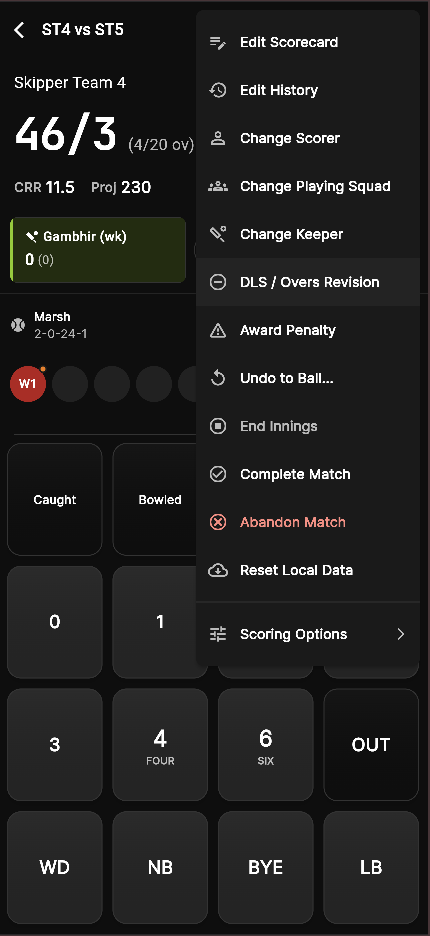
Almost everything in this guide lives in the scoring menu, the ⋮ in the top corner of the scoring screen.
The Quick Fix: Undo the Last Ball
For the slip you notice straight away, the Undo button on the scoring screen is all you need. It removes the last delivery and rolls everything back, reopening the batter or bowler picker if that ball had ended an over or taken a wicket. Tap it and carry on. Our scoring options guide covers it alongside the rest of the controls.
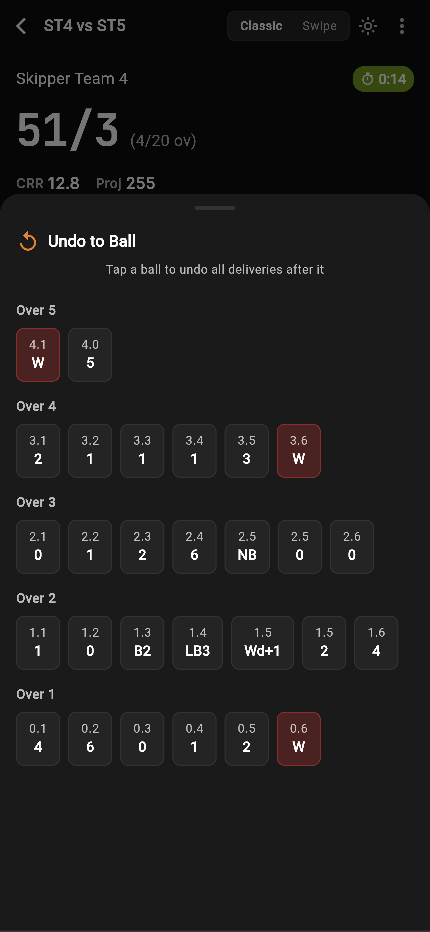
Going Further Back: Undo to Ball
Sometimes the mistake was three balls ago. Choose Undo to Ball and Skipper lays out the innings ball by ball. Tap the delivery you want to return to and it clears everything after it in one go, telling you how many deliveries that will remove before you confirm. It beats tapping undo over and over. This one is for live scoring only.
Correcting Without Unwinding: Edit Scorecard
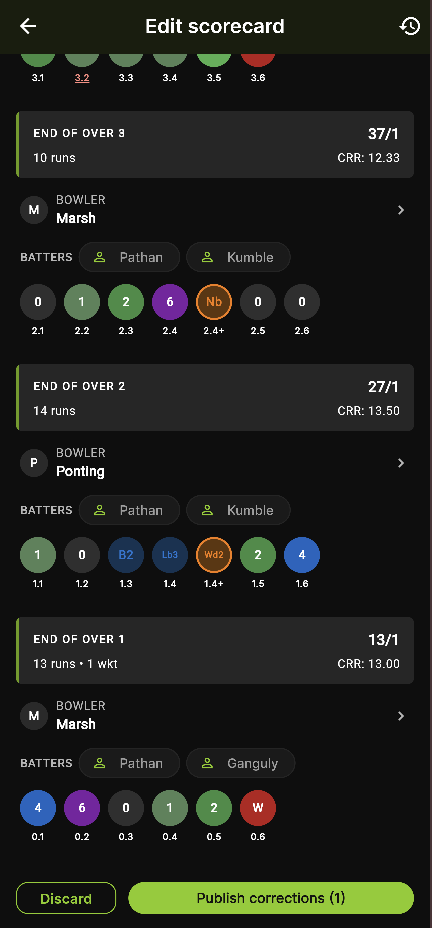
Undo throws away good work to get back to a bad ball. Usually you just want to fix one thing and leave the rest alone. That is what Edit Scorecard is for. It opens the innings as a list of overs, each ball a tappable dot.
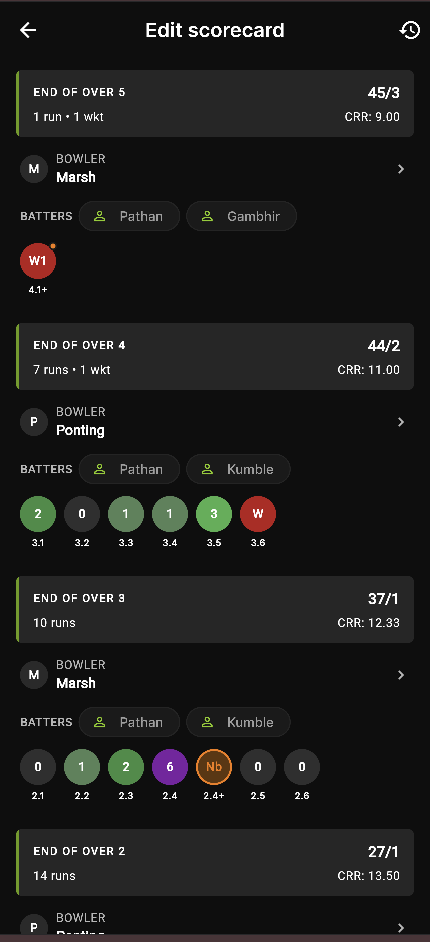
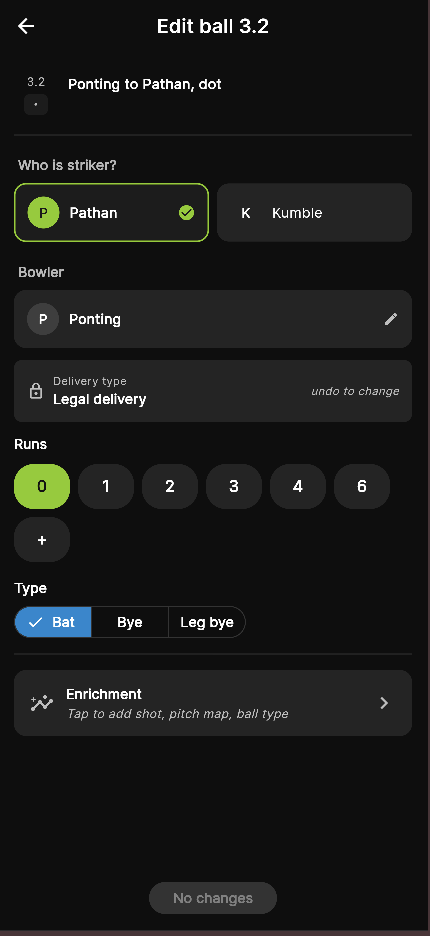
Tap a ball and you get its own little editor. You can change:
- the runs, and whether they came off the bat, as a bye, or as a leg bye,
- the wicket: the dismissal, which batter was out, and the fielder credited,
- which batter was on strike, and the bowler for that ball or the whole over,
- the delivery's enrichment (the shot, the pitch map, the ball type).
Turning a legal ball into a wide or no-ball is the one exception, since that changes the length of the over, so for those you undo instead.
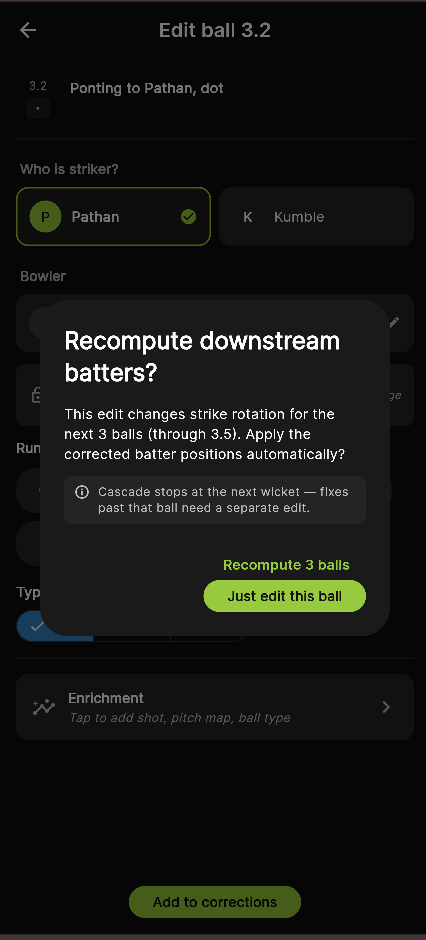
One thoughtful touch sits behind this. If your correction changes who was on strike, Skipper asks whether to recompute the balls that follow so the batting order stays right, or to just edit the one ball. The cascade stops at the next wicket, so it never quietly rewrites more than it should.
Your fixes gather as a set of pending corrections rather than going live one at a time. When you are happy with them, tap Publish corrections. Skipper recomputes everything downstream, the team total, the run rate, both batters' strike rates, any milestones, and the corrected scorecard goes out to everyone watching.
After the Match Is Over
Corrections are not only for live games. You can fix a completed match too, within a window:
- A standalone match stays editable for 24 hours after it finishes.
- A tournament match stays editable for as long as the tournament is still running, and locks when the organiser marks the tournament complete.
- Skipper admins can step in beyond the window when something genuinely needs putting right.
When you publish a post-match correction, anyone watching sees a note that the scorecard was updated, and the change goes straight into the record. Which brings us to the part that matters most.
Proving What Changed: Edit History
Any edit can look like meddling if it happens in the dark. So Skipper keeps the audit log out in the open. Edit History sits in the same menu, and anyone who can see the match can open it. The scorer, a captain, a parent, the opposition. Nobody is locked out.
For every correction it shows who made it, the role they made it under, when it happened, and each individual change with its before and after, like "Runs: 0 → 1" or "Bowler: Sharma → Khan." Tap an editor's name to see their profile.
So when a number changes, you never have to wonder why. You can see what changed, who changed it, and when. That openness is what lets a scorer fix an honest mistake without anyone suspecting the worst.
Who Can Edit
Editing is for the people running the match, not the crowd. That means the active scorer, the person who created the match, the tournament's organisers for a tournament game, and Skipper admins. Players and spectators can read the scorecard and the edit history, but they cannot change anything. This is enforced on the server, so the rule holds even if someone goes looking for a side door.
The Escape Hatch: Reset Local Data
One last tool, for scorers only. If your phone's copy of the match has drifted out of step, after a flaky network or a long gap, Reset Local Data discards the local copy and pulls a fresh one from the server. It only affects this one match, and it is the clean way back to the truth without waiting for anyone to take over the scoring.
The same menu holds a few neighbours we will cover on their own: Change Scorer, Change Playing Squad, Change Keeper, DLS and overs revision, awarding a penalty, and ending or abandoning a match. But for fixing a mistake, three tools do nearly all the work. Undo for the ball you just played, Edit Scorecard for everything older, and Edit History so the fix is never a secret.