How to Organize a Tournament in Skipper
Running a tournament used to mean a WhatsApp group, a spreadsheet that nobody could agree on, and one poor soul recalculating net run rate by hand at midnight. Skipper folds all of that into one place. You set the rules once, the app builds the fixtures, and the points table keeps itself honest after every match.
This guide walks you through the whole thing, from the first tap to lifting the trophy. You only need to read the parts that apply to your tournament. Most local leagues use a fraction of what is here.
Before You Start
You will be the Owner of any tournament you create, which means you control everything. You can hand out other roles later, so there is no need to gather your co-organisers before you begin. Open Skipper and go to the Tournaments section. At the top right there is a + (tooltip Create tournament) next to Join with code. Tap the +.
Step 1: Pick a Starting Point
Skipper opens with a Pick Your Format screen. There are three presets: Quick Start (perfect for beginners), Multi-Round (groups followed by knockouts), and Professional (league systems with playoffs). They are not separate products. A preset just pre-fills sensible defaults so a quick weekend cup does not ask you the same questions as a season-long league. Pick the closest one and move on. Every setting is editable afterwards.
Step 2: The Create Wizard
The wizard has six steps. Here is what each one is actually asking for.
Basic info
Tournament name, a short name (optional, used in compact places like fixtures and the scoreboard), your city, and an optional description.
Match format
This is the important one. Under Structure you choose how the matches progress:
| Structure | What it means |
|---|---|
| Round Robin | Everyone plays everyone. The cleanest way to find a fair winner. |
| League + PO | A table first, then playoffs. Use this for a season. |
| Groups + KO | Teams split into groups, play a round robin inside the group, and the top teams go through to the knockout. |
| Knockout | Win or go home. |
Then pick the Format: Limited Overs (overs per side) or Test Match (multi-day). For limited overs you set the overs per side, how many innings each side gets, the innings duration and the break between innings, and optionally a schedule. You can override all of them if your ground runs to a different clock. A Test match has its own Points (Test) section for win, loss, draw and tie.
One idea worth understanding early: a tournament is built from Rounds (the app's word for stages). A simple cup is one round. A bigger event might be a league round followed by semi-finals and a final. Each round has its own type, so you can run a group stage and then a knockout inside the same tournament.
Teams & squads
Set the Maximum teams and the squad size limits (minimum and maximum), plus how many players are on the pitch per side. The key choice here is the roster type:
- Open means you can add and remove teams at any point. Good for community events where entries trickle in.
- Locked fixes the teams at creation. Good when the field is already decided and you want no surprises.
- Auction sets the tournament up for a player auction, with a team purse. Our player auction guide covers it.
Identity
Upload a Logo and a Banner if you have them, and pick the Tournament kit colour. This is what gives your standings, fixtures, and stream overlays a consistent look. The logo follows the tournament everywhere, so it is worth adding.
Ball & pitch
Ball type and ball colour, the match venue type (Box for indoor netted cricket, Open for an outdoor ground), the scoring rules for wides and no balls, and the bit people care about most, the Points system. The defaults are 2 points for a win and 1 for a tie, but you can change them if your league does it differently.
Review & create
A last look at everything: match details, teams, schedule, and points. Tap Create tournament when it looks right.
There is no grounds step in the wizard. Add your venues afterwards from Manage Tournament (the gear icon at the top of your tournament): the Grounds card there says Add match venues until you have some. The scheduler uses that list when it spreads matches across venues, so add every ground you might use.
Step 3: Add Your Teams
On a new tournament's home screen, a YOUR NEXT STEPS card walks you through what is left to do, such as adding grounds and teams, and takes you to the right screen with one tap.
To fill the field, open Manage Teams in Manage Tournament. You will see how many teams are registered against your maximum. There are a few ways to do it:
- Tap to add a team. The Select Team to Add sheet lists SAVED TEAMS first, then MY TEAMS (the teams you manage). Type in Search teams to find one by name.
- Share an invite link so captains add their own teams.
- Show a QR code at a registration desk for people to scan and join.
Saved teams save you typing the same names every season. Tap Scan team QR and scan a team's QR code once, and Skipper keeps the team for you. In your next tournament it shows up under Saved teams. Teams from tournaments you ran before are already on the list. To drop one, tap the three dots on its row and choose Remove from saved.
Letting captains add their own teams saves you the most work, because they bring their own squads with them. If you locked the roster at creation, you will need to switch it back to Open to make changes.
Step 4: Build the Schedule
You have two ways to create matches, and most organisers use both.
The scheduler (the Schedule Matches card in Manage Tournament) is the fast path for round robin and league rounds. It works one round at a time, so fixtures you already made for the first round do not block the next one. It is a short wizard: pick the round, confirm the teams, choose the grounds, then set the practical details, start date, how many matches per day per ground, the first match time, and the gap between matches. Skipper lays out the entire round at once and shows you a preview. If it looks right, you confirm and every fixture is created in one go.
Manual creation is for one-off matches and for knockouts, where the next fixture only exists once you know who won. Pick the round, the two teams, and a ground, and the match is ready to start.
Step 5: Play, Score, and Watch the Table Move
When a tournament match is ready, open it and tap Start. Score it ball by ball the same way you would any match (our scoring options guide covers every button). When you complete the match, Skipper does the accounting for you. Points, net run rate, and league position all recalculate on the spot, and anyone watching the standings sees them shift in real time.
Net run rate is the usual tie-breaker, and Skipper computes it the proper way, runs scored per over faced minus runs conceded per over bowled. When two teams are level on points, NRR separates them, and head-to-head settles it if only two teams are involved.
When the Fixture List and the Ground Disagree
Sometimes two teams play early, or play a game that was never on the fixture list, and the points table does not know about it. Open the round, tap the menu (three dots) next to Bring a team back, and choose Add a match already played. Pick the match from the list. The points table and net run rate for that round recalculate on their own. You need permission on the match itself, so it must have been scored by you or someone who shared it with you. This is hidden on a completed round.
If a team was removed from a round and later reinstated, use Bring a team back from the same menu. The revived team starts from zero. The teams that already beat it keep their points and their result.
If a match was put in the wrong round, moving it now keeps the points table right, which used to leave points behind.
The Part Everyone Argues About: Qualification
This is where Skipper earns its keep near the business end of a league. Tap any team's row in the standings to open its Team Scenarios sheet.
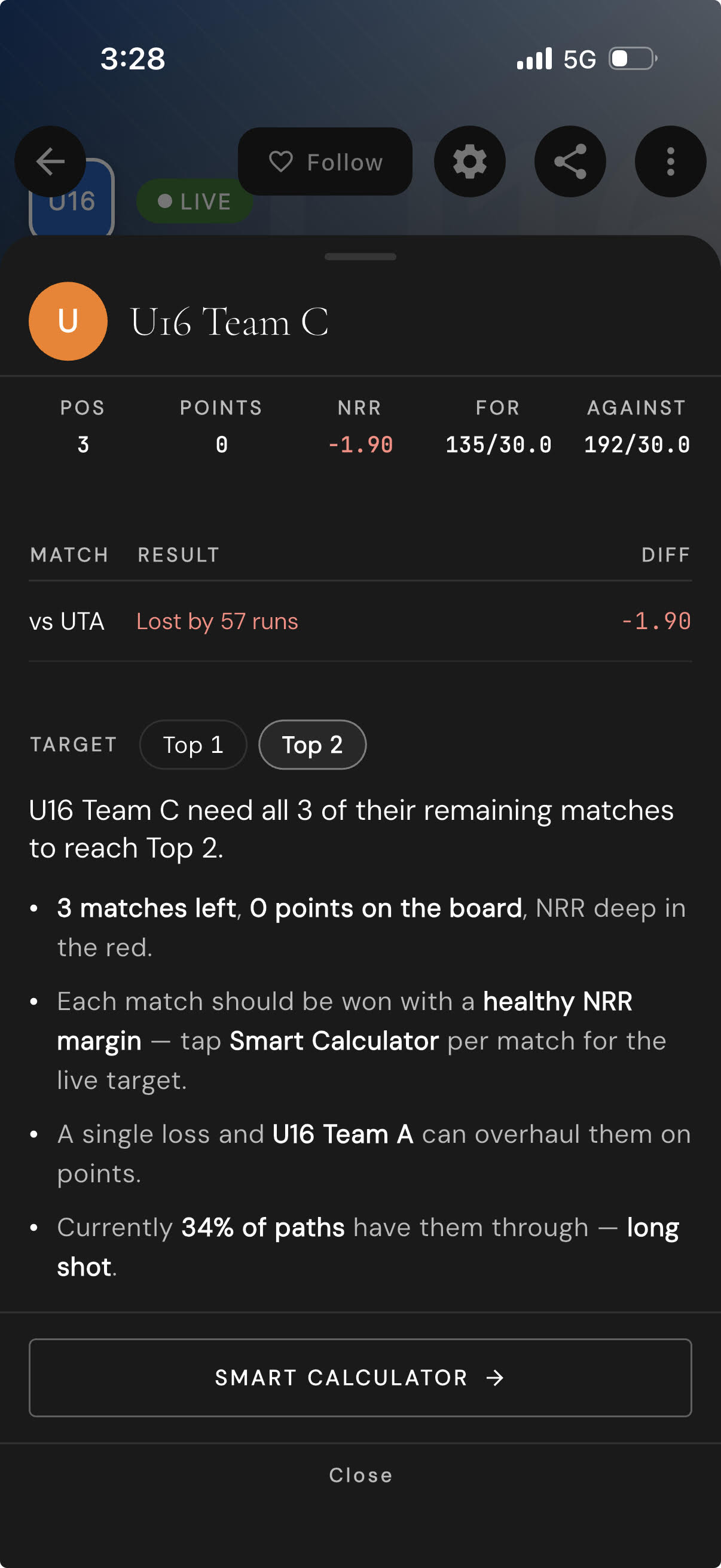
The sheet tells you where the team stands right now, with its points, net run rate, runs for and against, and a plain-language label on whether it is through, out, or still fighting. The labels mean exactly what they say:
- Qualified: mathematically through, nothing can change it.
- Virtually through: so far ahead that it would take an extreme result to stop them.
- Strong favourites: in a very good position, but not safe yet.
- In control or Still alive: In control is for a team sitting inside the qualifying places. Still alive is for a team outside them that is still in the race.
- Long shot: still possible, but it needs an unlikely margin. Skipper still shows you the exact number.
- Eliminated: knocked out.
Two sections show what is left. PENDING MATCHES lists the games your team still has to play. RESULTS TO WATCH lists every remaining fixture that could matter, including the ones that have no date yet.
The SMART CALCULATOR button is the smart one. Pick a remaining fixture and Skipper tells you what the result needs to look like, the kind of thing a captain actually wants to know. "Restrict them to 95" or "chase it inside 14 overs." It even names the team whose result is holding you back. The maths is honest about its assumptions, so when it uses a par total to project an unplayed game, it tells you what that par is.
Sharing the Load: Roles
You do not have to run everything yourself. Open the officials list and invite people, each with a role:
| Role | Can do |
|---|---|
| Owner | Everything, including deleting the tournament and managing other admins. This is you. |
| Admin | Edit settings, manage teams, schedule, and score. A trusted co-organiser. |
| Scorer | Manage teams, schedule, and score matches. The people on the ground. |
| Viewer | Read-only. Standings, fixtures, and stats, with nothing they can break. |
For a busy weekend, add your scorers before the first ball so they can pick up any match without waiting for you.
Wrapping Up the Tournament
When the final is done, mark the tournament as Completed. This freezes the points table, locks the results, and publishes the leaderboard and any awards. Players keep the stats in their profiles, and the record stays put for whenever someone wants to relive it.
Sharing the Fixtures and the Results
Skipper can turn your schedule and your results into images you can post straight to the WhatsApp group. Tap Share fixtures on the Matches tab for the next match day, and Share results on the Results tab once the tournament is over. Our share your schedule and results guide walks through both.
That is the whole arc. The first tournament takes a few minutes to set up. The second one takes about thirty seconds, because by then you know exactly which of these settings you actually care about.